So now that I have a coherent vision of the game, I finished the first level (which will be a tutorial level really, nothing much is going on). Interesting fact: I made this based on the house of another, childhood friend of mine, with slight modifications. I don't know why, but that house is the default one when I try to imagine what other houses look like. Perhaps this friend represented to me what a 'normal' family would look like? This seems the most reasonable explanation, but then again, I have no way of being sure. I'll stick with it, though.
So after I have added the last few little touches (texts on the walls, that hint at the general aura of the whole game; also added the music for this level. I have all the songs I want to use, downloaded from incompetech - royalty-free music ftw!), I've asked a friend to look at it, while I could watch him play (Teamviewer 11 gives a very good user experience, if you have a good enough network connection, I can only recommend!), and I made a few notes. Afterwards, I asked for his input, and then talked about it.
So, as it turned out, I need to rework the shades, or somehow I need to make it more clear to the player that he needs to avoid them. Or that they hurt the player. Or that the blur effect is supposed to mark how afraid the character is. Or that darkness is to be avoided. He had the idea that there could be little words flash in and out (not too visibly) in the dark areas (words like "fear", "loneliness" and stuff). But then, why not make the shades become these floating words, instead? I think I'll go with that idea.
Another problem was that at the starting room, one could easily "die" by accidentally going backwards, into the shadow. He suggested to remove the nightstand from next to the bed, and instead put a shelf in the opposite corner, which could provide a clear hint at the player that shadows are bad.
But this problem also presented itself at the end of the level, where there is a bed, and if you go too close to it, you enter the shadowy part, which means death. Since I check the player's center point against the lights, and not the whole model, this gives unrealistic results in these corner cases. My friend suggested to use areas where this "feature" would not activate. Which seems like an easy thing to do, so I'll keep this suggestion in mind. (Another solution could be to sample not from one point, but from many. I'll need to explore these slutions sometime.)
And minor bugs, of course, because game development would be just plain boring if you wouldn't need to fix shit all the time.

Wednesday, November 16, 2016

Sunday, November 13, 2016
Brain teaser
Early on the game, the player will enter in a level where there is a huge brain, with all kinds of devices attached to it. All these devices represent something, which I won't go into detail, because I want to spare some novelty for the actual game.
First thing to do is to get a brain model. I sure as hell won't start modelling one. So I need a free brain model, that is low-poly enough. Unfortunately I couldn't find one that I could use (tried to convert and whatnot, but for some reason I couldn't). That's when I ran into this. I downloaded the pial (in .obj), and then fired up Blender.

The number of faces is too large - it is in the realm of hundred thousands. Even if Unity would be able to handle this (it isn't, there is a hard cap at 65,536 faces), it would be too large for my game. What I did is to use the Decimate, Smooth and Triangulate modifiers. Decimate (planar, up to 20 degrees) did a good job at lowering the amount of faces, smooth made it look a bit better, and then triangulate fixed a problem in Unity, where some of the faces would not be rendered.


First thing to do is to get a brain model. I sure as hell won't start modelling one. So I need a free brain model, that is low-poly enough. Unfortunately I couldn't find one that I could use (tried to convert and whatnot, but for some reason I couldn't). That's when I ran into this. I downloaded the pial (in .obj), and then fired up Blender.

The number of faces is too large - it is in the realm of hundred thousands. Even if Unity would be able to handle this (it isn't, there is a hard cap at 65,536 faces), it would be too large for my game. What I did is to use the Decimate, Smooth and Triangulate modifiers. Decimate (planar, up to 20 degrees) did a good job at lowering the amount of faces, smooth made it look a bit better, and then triangulate fixed a problem in Unity, where some of the faces would not be rendered.

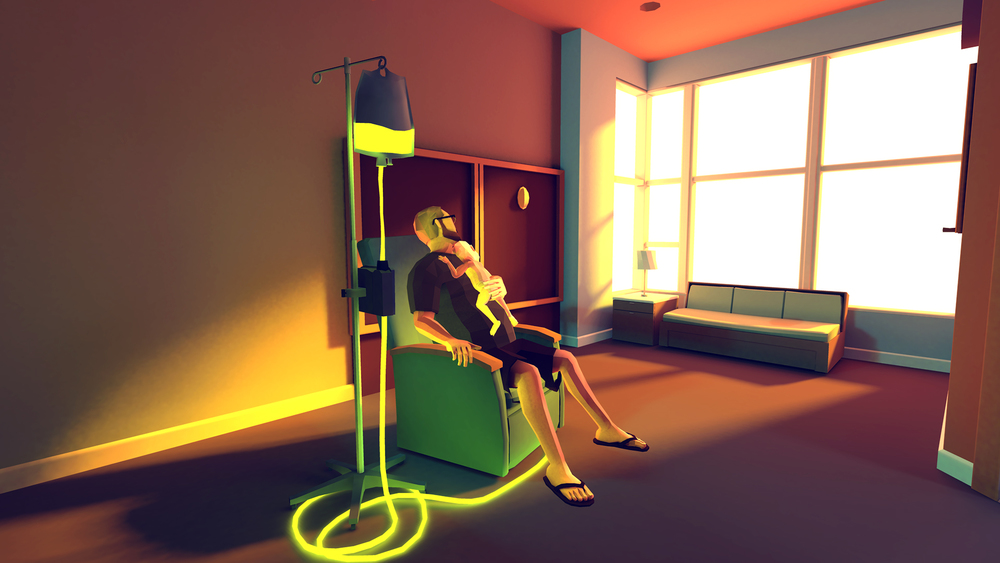
It contains about 10,000 faces. After that, I imported the model into a new scene, then I modeled a wire in blender, imported it as well, then added lights, materials, etc. This is the end result:

With the wires, I was aiming for a look like this (the game is called "That Dragon, Cancer"). However, this was just a quick mash-up to see the brain model in the game with a few effects, the end result will be a bit more polished, I hope.
Tuesday, November 8, 2016
Beginner's Guide
A few days ago I played a game called "Beginner's Guide", which is done by the same person as the game "The Stanley Parable". I don't say much about it other than it is also a story-driven game, that is all about getting to know a person by the kind of games they make (as seen in the trailer), because it would spoil a lot of good things. Check out the trailer here.
What I noticed while playing the game is that what the narrator, Dave, does, is also what I do naturally. I like to get to know people who somehow arouse my interest. And I mean *really* get to know them, to a very deep and personal level. I easily get obsessed about some.
But I'm also like Coda, the person who is the subject of all the analysis - although I have to admit that the basic ideas behind those games are far more creative, profound and symbolic than any of my game ideas. Heck, I even stopped working on this very game, because of lack of motivation, lack of ideas, I just couldn't come up with a way of continuing development. There wasn't an overarching theme, a topic, which I could use as a base when designing levels.
But after I played the Beginner's Guide, and got a few days to think about it, suddenly I was able to come up with a consistent idea, and finally I managed to create an ending (in my head) with which I am actually satisfied, unlike the previous one I had in mind.
So now that I know the desired end result, I can continue where I left. I also realized that in order for this game to be personal, artistic and meaningful, it doesn't even has to have very detailed models or such. I can do it in a minimalistic style, just like the Beginner's Guide.
I also changed the game's message. I intend it to be far more personal than I originally planned. I put out all my quirks and cracks, and hope for the best.
So for now, I feel the rush to work on this game again.
Hopefully, it will last longer than a few hours.
What I noticed while playing the game is that what the narrator, Dave, does, is also what I do naturally. I like to get to know people who somehow arouse my interest. And I mean *really* get to know them, to a very deep and personal level. I easily get obsessed about some.
But I'm also like Coda, the person who is the subject of all the analysis - although I have to admit that the basic ideas behind those games are far more creative, profound and symbolic than any of my game ideas. Heck, I even stopped working on this very game, because of lack of motivation, lack of ideas, I just couldn't come up with a way of continuing development. There wasn't an overarching theme, a topic, which I could use as a base when designing levels.
But after I played the Beginner's Guide, and got a few days to think about it, suddenly I was able to come up with a consistent idea, and finally I managed to create an ending (in my head) with which I am actually satisfied, unlike the previous one I had in mind.
So now that I know the desired end result, I can continue where I left. I also realized that in order for this game to be personal, artistic and meaningful, it doesn't even has to have very detailed models or such. I can do it in a minimalistic style, just like the Beginner's Guide.
I also changed the game's message. I intend it to be far more personal than I originally planned. I put out all my quirks and cracks, and hope for the best.
So for now, I feel the rush to work on this game again.
Hopefully, it will last longer than a few hours.
Saturday, April 9, 2016
Now you see me, now you don't!
EDIT: well, this solution isn't good enough. If you watch it from a different camera angle, the text is very visible, which I don't want. Searching for another solution. However, I'll leave it here, as maybe someone will come through the same problem I did (3D text showing through game objects).
EDIT2: All it took to fix it is just to create a new material for the floor, use the "Standard (Specular setup)" material, set "Specular" to black, and set "Albedo" to a light grayish value. Now it works from all angles.
Taking month-long breaks are my thing. Probably my weak willpower. Whatever.
Wanted to do a quick test of a way of including easter eggs. Let's assume I want to hide a piece of text in a room, and I want it to be revealed only if there is a different colored light is there. For example, I have a red text on a white floor, and the room is lit with red light. You won't see the text. But, if the room is lit by any other colored light (blue, green, white, etc..), then the text will be clearly visible.
However, there is a problem with the standard 3D text Unity grants. I'm not going into the details, but this blog post does. After fixing the shader, it works just as I imagined.
EDIT2: All it took to fix it is just to create a new material for the floor, use the "Standard (Specular setup)" material, set "Specular" to black, and set "Albedo" to a light grayish value. Now it works from all angles.
Taking month-long breaks are my thing. Probably my weak willpower. Whatever.
Wanted to do a quick test of a way of including easter eggs. Let's assume I want to hide a piece of text in a room, and I want it to be revealed only if there is a different colored light is there. For example, I have a red text on a white floor, and the room is lit with red light. You won't see the text. But, if the room is lit by any other colored light (blue, green, white, etc..), then the text will be clearly visible.
However, there is a problem with the standard 3D text Unity grants. I'm not going into the details, but this blog post does. After fixing the shader, it works just as I imagined.
Wednesday, February 17, 2016
Open, Sesame, again!
The last couple of days I was procrastinating busy learning Blender enough to be able to make a pop-up book animation. I plan to have such things for the menu, and for the "cutscenes".
What I did was just googling "blender pop-up book tutorial", found this video, and started to do something like it. There is really nothing more to it.
So far, I only made a test animation, so don't expect anything fancy. As I'm practicing it, my style will become more and more polished, and hopefully the end result in the final release will be fitting into the overall style of the game.
Obligatory gif in the post
What I did was just googling "blender pop-up book tutorial", found this video, and started to do something like it. There is really nothing more to it.
So far, I only made a test animation, so don't expect anything fancy. As I'm practicing it, my style will become more and more polished, and hopefully the end result in the final release will be fitting into the overall style of the game.
Obligatory gif in the post
Saturday, February 13, 2016
Everything is a blur
So I just added a blur filter, to let the player know where is the fear meter currently.
How to add blur effect to the camera in Unity 5 free version?
The way I did was pretty simple: clicked on Assets -> Import package -> Effects, selected BlurOptimized and PostEffectBase from Standard Assets/Effects/ImageEffects/Scripts, and selected MobileBlur from Standard Assets/Effects/ImageEffects/Shaders/_BloomAndFlares.
Then, added BlurOptimized to the camera as a component.
Now, since I don't want blurring just at the start of the game, I set the sliders to their minimal value. Then went into the Player component, and in the Update function, I added this code:
// Change main camera's blur to reflect fear level
Camera.main.GetComponent<UnityStandardAssets.ImageEffects.BlurOptimized>().blurSize = fearLevel * 10f;
(Gif in full post)
How to add blur effect to the camera in Unity 5 free version?
The way I did was pretty simple: clicked on Assets -> Import package -> Effects, selected BlurOptimized and PostEffectBase from Standard Assets/Effects/ImageEffects/Scripts, and selected MobileBlur from Standard Assets/Effects/ImageEffects/Shaders/_BloomAndFlares.
Then, added BlurOptimized to the camera as a component.
Now, since I don't want blurring just at the start of the game, I set the sliders to their minimal value. Then went into the Player component, and in the Update function, I added this code:
// Change main camera's blur to reflect fear level
Camera.main.GetComponent<UnityStandardAssets.ImageEffects.BlurOptimized>().blurSize = fearLevel * 10f;
(Gif in full post)
Thursday, February 11, 2016
Fade to black
Yesterday and today I worked on two related stuff: "dying" and fading.
You don't really die in this game. The character has a fear level (which is not visible yet, but I'm thinking on how to notify the player about how much fear does the character have), which increases when a shade passes through or near the player, but slowly decreases over time. If it reaches its max value, the character "wakes up" into the same level, which effectively restarts it.
To make this a little more aesthetically pleasing, I've added a fade in / fade out effect to the beginning and the end of a level. This was done by the new Canvas object - I have a prefab of a canvas containing a single black Image that covers the whole screen, and I change its alpha. For a tutorial, click here. Note: after the player dies, the controller script is turned off, so it can't move while fading out.
(Gif in full post)
You don't really die in this game. The character has a fear level (which is not visible yet, but I'm thinking on how to notify the player about how much fear does the character have), which increases when a shade passes through or near the player, but slowly decreases over time. If it reaches its max value, the character "wakes up" into the same level, which effectively restarts it.
To make this a little more aesthetically pleasing, I've added a fade in / fade out effect to the beginning and the end of a level. This was done by the new Canvas object - I have a prefab of a canvas containing a single black Image that covers the whole screen, and I change its alpha. For a tutorial, click here. Note: after the player dies, the controller script is turned off, so it can't move while fading out.
(Gif in full post)
Tuesday, February 9, 2016
Beware of the dark!
Today I fine-tuned the shade generator: firstly, I change the radius in which the shades are generated based on how much light the player receives. The less light it receives the closer will the shades spawn to the player. Secondly, the less light a player receives, the less time it takes for a new shade to be generated.
Also, I have fine-tuned the shades themselves. Their opacity will now change in a sine-like fashion - that is, it will be more and more opaque until half of its life has elapsed, and then they will become more and more transparent. Shades now last for 2 seconds. Also added a few more eye-colors, and now they are getting spawned randomly.
Also, if you use world-relative coordinates in the particle system, instead of local ones, you don't have to adjust the speed of the particles to the speed of the whole system to have the particles seem to stay in place while the particle system moves.
(Gif in full post)
Also, I have fine-tuned the shades themselves. Their opacity will now change in a sine-like fashion - that is, it will be more and more opaque until half of its life has elapsed, and then they will become more and more transparent. Shades now last for 2 seconds. Also added a few more eye-colors, and now they are getting spawned randomly.
Also, if you use world-relative coordinates in the particle system, instead of local ones, you don't have to adjust the speed of the particles to the speed of the whole system to have the particles seem to stay in place while the particle system moves.
(Gif in full post)
Monday, February 8, 2016
Fifty shades of my game
I've just added the single reason why you will stay in the lit areas: shades.
Shades are little creatures of the night. When a shade reaches the player, it will inflict damage, which will pump up the fear meter. The amount of damage will be based on how much light is received by the player. The fear meter gradually shrinks on its own. However, if it reaches 100%, the player will "wake up" at the start of the map, next to the bed. (A bed will mark each level's beginning.)
So far I'm just generating shades at random positions (inside a radius of the player) with a random orientation. However, I will fine-tune the generator algorithm, so that shades will appear in dark places more frequently.
I've made a prefab containing a particle system (the shade's body) and a sprite (the shade's eyes). Shades also have a "Shade" component, which makes the shade move forward, and is responsible for terminating it after 3 seconds. It will also modulate the opacity of the shade so that it doesn't just disappear.
(Gif in full post)
Shades are little creatures of the night. When a shade reaches the player, it will inflict damage, which will pump up the fear meter. The amount of damage will be based on how much light is received by the player. The fear meter gradually shrinks on its own. However, if it reaches 100%, the player will "wake up" at the start of the map, next to the bed. (A bed will mark each level's beginning.)
So far I'm just generating shades at random positions (inside a radius of the player) with a random orientation. However, I will fine-tune the generator algorithm, so that shades will appear in dark places more frequently.
I've made a prefab containing a particle system (the shade's body) and a sprite (the shade's eyes). Shades also have a "Shade" component, which makes the shade move forward, and is responsible for terminating it after 3 seconds. It will also modulate the opacity of the shade so that it doesn't just disappear.
(Gif in full post)
Sunday, February 7, 2016
Open, Sesame!
Just implemented the switch mechanic.
Main problem: how do you make objects interact with / control other objects, in a Unity-idiomic way? My first thought was to just make a new script file for every interactable object, and just have a few hundred C# files named like "map03_switch24.cs". Clearly an amazing and elegant solution.
Then I thought about the different types of objects I planned on making. Fortunately, there are only a couple of types of them, like doors, switches, lights, sensors... And most of them work in the same way: switches just switch a couple objects on or off, doors can be opened or closed, etc.
So what if I just create a couple of components, like Door, Lamp, etc.? Then each will have an "OnSwitch" function, which will cause some change (for example, the door will open).
Last time, I've implemented the Selectable component. I have made two additions:
1. Each selectable now have a list of objects assigned to it (that it can manipulate)
2. Added a little clause to the code: if a selectable object is selected, and the player presses the "Jump" key (spacebar), then it calls "OnSwitch" on all the assigned objects.
The only problem is how to get the component of the objects. I mean, I could just look for all the Door, Lamp, etc. components, but it would be error prone. Fortunately, one can make Interfaces in Unity. So I just created an ISwitchable interface, with one function, OnSwitch(), and then went on the components, and told Unity that they implement this interface.
After that, I could write GetComponent<ISwitchable>().OnSwitch(), and it worked. Ez-pz.
Now, a few words about doors: I plan to have traditional doors in the beginning (when you open it, it turns around the hinges), but later on, I might want sliding doors, or doors that just go transparent. So I created a few kinds, which one can select in the inspector.
(Gif in full post)
Main problem: how do you make objects interact with / control other objects, in a Unity-idiomic way? My first thought was to just make a new script file for every interactable object, and just have a few hundred C# files named like "map03_switch24.cs". Clearly an amazing and elegant solution.
Then I thought about the different types of objects I planned on making. Fortunately, there are only a couple of types of them, like doors, switches, lights, sensors... And most of them work in the same way: switches just switch a couple objects on or off, doors can be opened or closed, etc.
So what if I just create a couple of components, like Door, Lamp, etc.? Then each will have an "OnSwitch" function, which will cause some change (for example, the door will open).
Last time, I've implemented the Selectable component. I have made two additions:
1. Each selectable now have a list of objects assigned to it (that it can manipulate)
2. Added a little clause to the code: if a selectable object is selected, and the player presses the "Jump" key (spacebar), then it calls "OnSwitch" on all the assigned objects.
The only problem is how to get the component of the objects. I mean, I could just look for all the Door, Lamp, etc. components, but it would be error prone. Fortunately, one can make Interfaces in Unity. So I just created an ISwitchable interface, with one function, OnSwitch(), and then went on the components, and told Unity that they implement this interface.
After that, I could write GetComponent<ISwitchable>().OnSwitch(), and it worked. Ez-pz.
Now, a few words about doors: I plan to have traditional doors in the beginning (when you open it, it turns around the hinges), but later on, I might want sliding doors, or doors that just go transparent. So I created a few kinds, which one can select in the inspector.
(Gif in full post)
Saturday, February 6, 2016
The Pulse
Question: how do you let the player know if they can select an object? Also, how do you make them select an object?
Lots of good solutions. Some of them use a cursor, some of them use the player's position and orientation, some of them use other methods. I choose the second, and I made a mental note to NOT put my selectable objects too close to each other.
So, how do you make these objects stand out? my solution: make their color pulse! Like in Gorky 17.
First, I have created a standard material and set the emission to a dark grey. So the glowing objects will in fact "emit" light. (Only in rendering, as far as I know, they won't actually illuminate other objects.)
Then, I attach a Selectable component to them (code), and voilá! If a gameobject named "Player" faces them from close, the'll glow.
(Gif in full post)
Lots of good solutions. Some of them use a cursor, some of them use the player's position and orientation, some of them use other methods. I choose the second, and I made a mental note to NOT put my selectable objects too close to each other.
So, how do you make these objects stand out? my solution: make their color pulse! Like in Gorky 17.
First, I have created a standard material and set the emission to a dark grey. So the glowing objects will in fact "emit" light. (Only in rendering, as far as I know, they won't actually illuminate other objects.)
Then, I attach a Selectable component to them (code), and voilá! If a gameobject named "Player" faces them from close, the'll glow.
(Gif in full post)
Lights, cameras, action!
Let's dive in deep!
In the beginning, there was an idea of mine, so I fired up Unity. First problem I wanted to solve is how to position the camera above and behind the player. My first idea was to just create a script that receives an object, a distance and a height, and tries to calculate the correct position for the camera. But I am lazy and I hate to think.
So I wanted to offload this work to Unity. I figured out I could just use Unity's object hierarchy to have the camera always properly placed. Just make the camera a child object of the player, and it will always be behind and above the character, no matter where it goes or turns (as long as it turns only around the up axis, that is).
But I want the camera to follow the player smoothly. Because of this, I won't put the actual camera in the hierarchy. Instead, I'll just use an empty proxy, and I will tell the camera to smoothly follow that proxy object and face the same direction as that proxy.
So now we have a Player, with two children: PlayerModel and CameraProxy. (Actually I could just put the playermodel into the root object, but for some reason, my hunch says it is a bad idea. We'll see.)
I attach an ObjectFollower script to the camera, and give the proxy as its argument. (The value I use for moving speed is 100, and the rotation speed is 10.)
(And I just noticed I forgot to actually upload the Assets folder to my github repo, because I accidentally put it in my .gitignore. Silly me.)
Here's a link to the ObjectFollower script.
All it does is moves the follower object closer and closer to the followed object, and also rotates it, in a smooth manner.
Next thing I wanted to do is to provide physical constraints. I've set up a test room, with walls. I wanted the player (denoted by a sphere for now) to not go through them. So I've added a Rigidbody component to the Player object (the root object), froze the rotation in all directions (it means that the physics engine won't rotate it, while scripts still can), and then added a Sphere Collider for the PlayerModel object (one of the child objects), so that it has an actual physical body.
I also attached a Controllable component (here is the code) for the Player object, in order to let the player control it. (I love how the line endings get messed up every time in my codes. /s)
And I saw this was good. And there was evening and there was morning, the first day.
In the beginning, there was an idea of mine, so I fired up Unity. First problem I wanted to solve is how to position the camera above and behind the player. My first idea was to just create a script that receives an object, a distance and a height, and tries to calculate the correct position for the camera. But I am lazy and I hate to think.
So I wanted to offload this work to Unity. I figured out I could just use Unity's object hierarchy to have the camera always properly placed. Just make the camera a child object of the player, and it will always be behind and above the character, no matter where it goes or turns (as long as it turns only around the up axis, that is).
But I want the camera to follow the player smoothly. Because of this, I won't put the actual camera in the hierarchy. Instead, I'll just use an empty proxy, and I will tell the camera to smoothly follow that proxy object and face the same direction as that proxy.
So now we have a Player, with two children: PlayerModel and CameraProxy. (Actually I could just put the playermodel into the root object, but for some reason, my hunch says it is a bad idea. We'll see.)
I attach an ObjectFollower script to the camera, and give the proxy as its argument. (The value I use for moving speed is 100, and the rotation speed is 10.)
(And I just noticed I forgot to actually upload the Assets folder to my github repo, because I accidentally put it in my .gitignore. Silly me.)
Here's a link to the ObjectFollower script.
All it does is moves the follower object closer and closer to the followed object, and also rotates it, in a smooth manner.
Next thing I wanted to do is to provide physical constraints. I've set up a test room, with walls. I wanted the player (denoted by a sphere for now) to not go through them. So I've added a Rigidbody component to the Player object (the root object), froze the rotation in all directions (it means that the physics engine won't rotate it, while scripts still can), and then added a Sphere Collider for the PlayerModel object (one of the child objects), so that it has an actual physical body.
I also attached a Controllable component (here is the code) for the Player object, in order to let the player control it. (I love how the line endings get messed up every time in my codes. /s)
And I saw this was good. And there was evening and there was morning, the first day.
Thursday, February 4, 2016
Let's do it!
So yeah. Here I am, starting to work again on something I worked on in the past. But recently I felt I need to do this. I need to make it a reality.
Originally I stopped working on it because I didn't think it would be "fun". But after playing a few personally themed indie titles, like "That Dragon, Cancer", I am not so sure anymore. Also, I have saw some cool ideas as to how to make my game more engaging.
So I am now putting my other game (Kart of War) on hold. I'm not sure if I'll ever finish it, though I want to.
This game will be a summary of my reflections about my childhood. Mostly a game of contemplation with puzzle elements and a moody athmosphere, with occasional action elements inbetween.
We'll see how it works out in the end.
Originally I stopped working on it because I didn't think it would be "fun". But after playing a few personally themed indie titles, like "That Dragon, Cancer", I am not so sure anymore. Also, I have saw some cool ideas as to how to make my game more engaging.
So I am now putting my other game (Kart of War) on hold. I'm not sure if I'll ever finish it, though I want to.
This game will be a summary of my reflections about my childhood. Mostly a game of contemplation with puzzle elements and a moody athmosphere, with occasional action elements inbetween.
We'll see how it works out in the end.
Subscribe to:
Posts (Atom)